
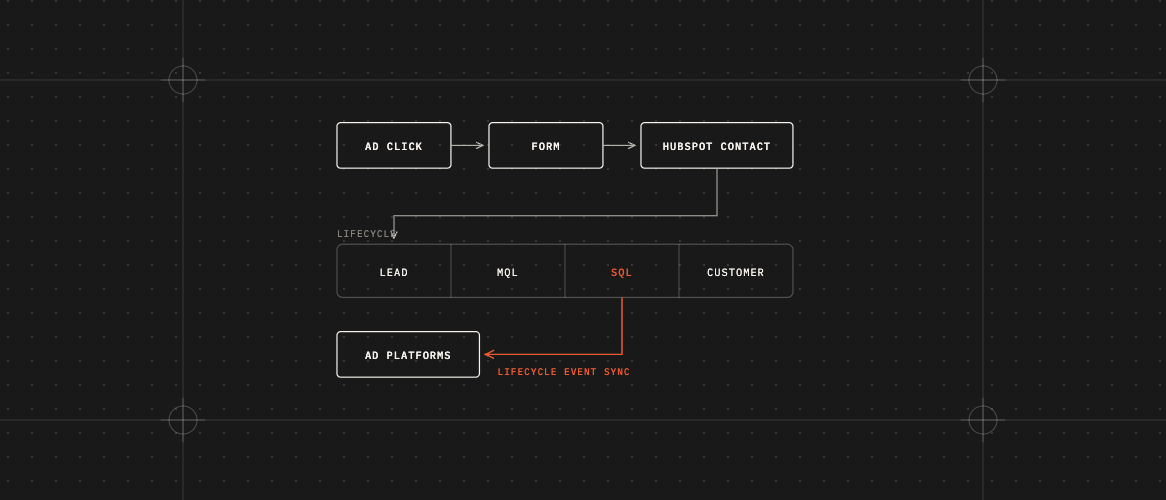
Short answer: Good HubSpot conversion tracking does two things. First, every new lead shows which ad or campaign it came from. Second, when a lead becomes a good lead or a customer, HubSpot can tell Google, Meta and LinkedIn, if you’re on a paid Marketing Hub plan and set up a conversion event for each stage. That second part helps your ads find more people like your best customers.
Step 1: Add the HubSpot tracking code to your website
- Add it to every page. The HubSpot WordPress plugin can do this for you.
- Make sure your cookie banner works with HubSpot.
- Check it’s on your landing pages, thank you pages, and booking pages.
Step 2: Make sure your forms save where the lead came from
- Use HubSpot forms, or turn on HubSpot’s option to capture your existing forms. Test it, because it doesn’t work with every form.
- Add tracking tags (called UTM tags) to all your ad links. HubSpot reads them and saves the source on each contact.
Test it: fill in your own form from an ad link and check the new contact shows the right source and campaign.
Step 3: Connect your ad accounts
In HubSpot’s ads section, connect Google Ads, Facebook, and LinkedIn. HubSpot can then show which ads brought in which contacts. The HubSpot Knowledge Base has step-by-step guides for each one.
Step 4: Send HubSpot conversion tracking back to your ads
This is the step that’s easiest to skip.
- Set clear stages for your leads, for example: new lead, qualified lead, customer.
- In HubSpot, go to Marketing > Ads > Events and create a conversion event for each stage you want to send. Only stage changes after you create the event are sent.
- Over time, tell Google Ads to aim for qualified leads, not just any lead.
Conversion events need Marketing Hub Starter, Professional or Enterprise. For Meta, HubSpot also needs to install your Meta pixel, form events only work with HubSpot forms, and stage changes only help lead ad campaigns that use instant forms.
Step 5: Don’t count the same lead twice
If Google Ads already counts your form fills, don’t also count the same thing from HubSpot as your main goal. Pick one source for each result.
Step 6: Check your reports
Use HubSpot’s reports to see which campaigns bring in real customers, not just leads. If many leads aren’t turning into customers, read low quality leads from ads: why it happens.
Common HubSpot conversion tracking problems
- Tracking tags get lost when links redirect, so leads show up as “direct traffic.”
- Some forms, like ones from certain page builders, aren’t captured.
- Lead stages are updated by hand and not consistently.
- The cookie banner blocks HubSpot, so contacts have no source.
FAQ
Can HubSpot send results to Google Ads and Facebook?
Yes, on a paid Marketing Hub plan, after you connect the ad account and create a conversion event for each result you want sent.
Do I still need the Google Ads tag and Meta Pixel?
It depends. For Meta, HubSpot recommends installing the pixel only through HubSpot and removing any pixel code you added yourself, or you’ll get duplicate events. For Google Ads, keep your Google tag unless HubSpot’s setup replaces it. HubSpot adds what happens after the website, in your sales process.
Why do my contacts say “direct traffic” or “offline sources”?
Common causes are missing tracking tags, the tracking code being blocked, or forms HubSpot can’t see. Test the full path from ad to form.
Want this set up for you, including who gets each lead and how fast they’re followed up? That’s the lead routing and follow-up automation service.
Is your website losing the leads your ads pay for?
Free scan of one page, or the $49 Lead Leak Report for up to three.